
Share This Article
A laptop with a single USB-C port can still power a full multi-screen desk once the right hardware sits between the two. Building a USB-C docking station multi-monitor setup means weighing display count, resolution, and the extra ports a workstation needs beyond video. Acer Gadget Partner-Newease carries several docking stations built around that goal, each with its own port mix and display ceiling.
Understanding USB-C Docking Stations for Multi-Display Setup
A docking station takes one USB-C connection from a laptop and splits it into several outputs, covering displays, data, and power. HDMI and DisplayPort remain the two standards most commonly used to send a video signal to external monitors, and the number of each a dock carries determines how many screens it can run at once alongside the resolution those screens can reach.
Not every laptop port handles this kind of expansion the same way. A dock generally needs a USB-C port with DisplayPort Alt Mode to pass a video signal through, and that requirement holds across the entire lineup regardless of which model pairs with a given laptop. Confirming that support beforehand avoids a setup where extra screens simply never light up.
The Acer 12-in-1 Docking Station: Triple Display Architecture
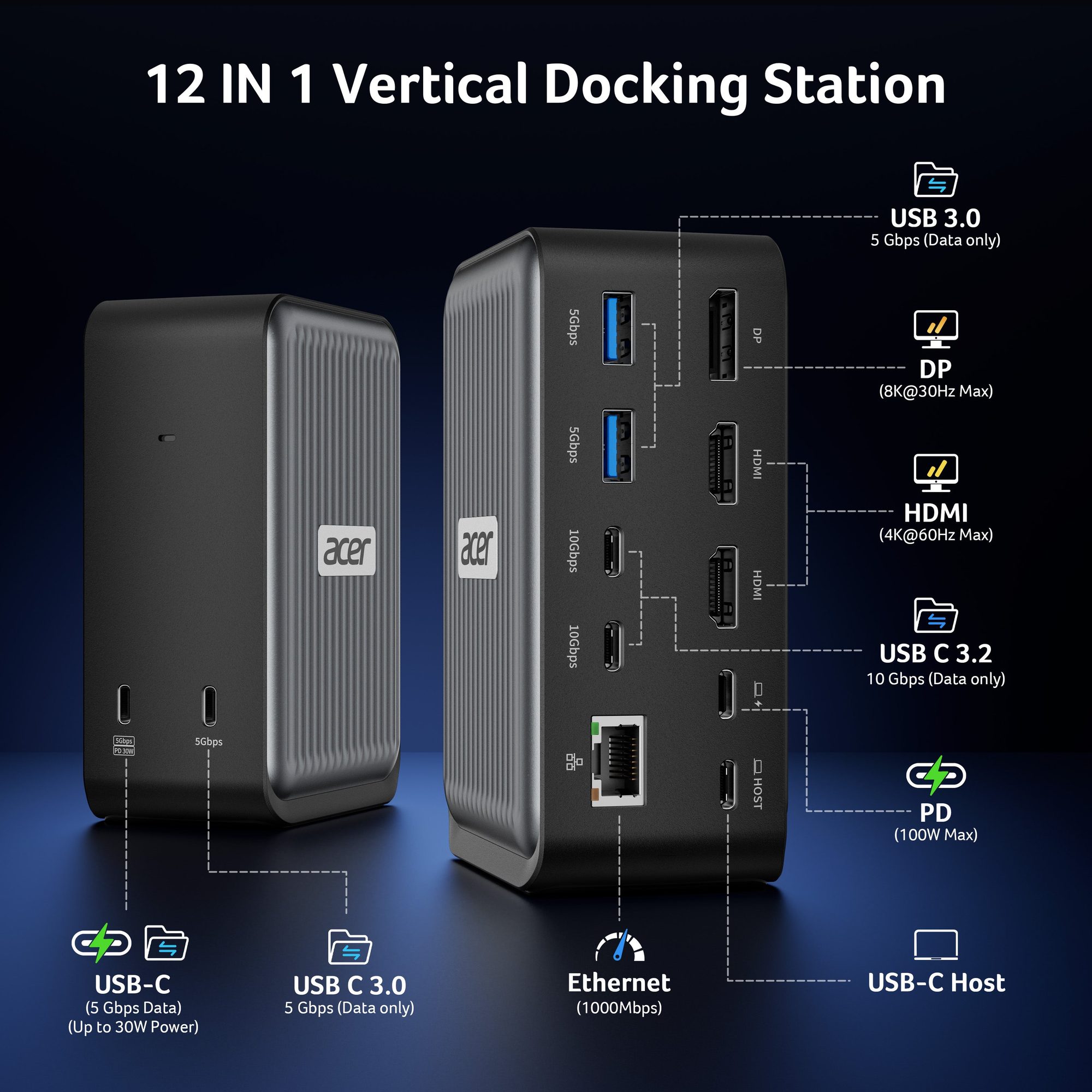
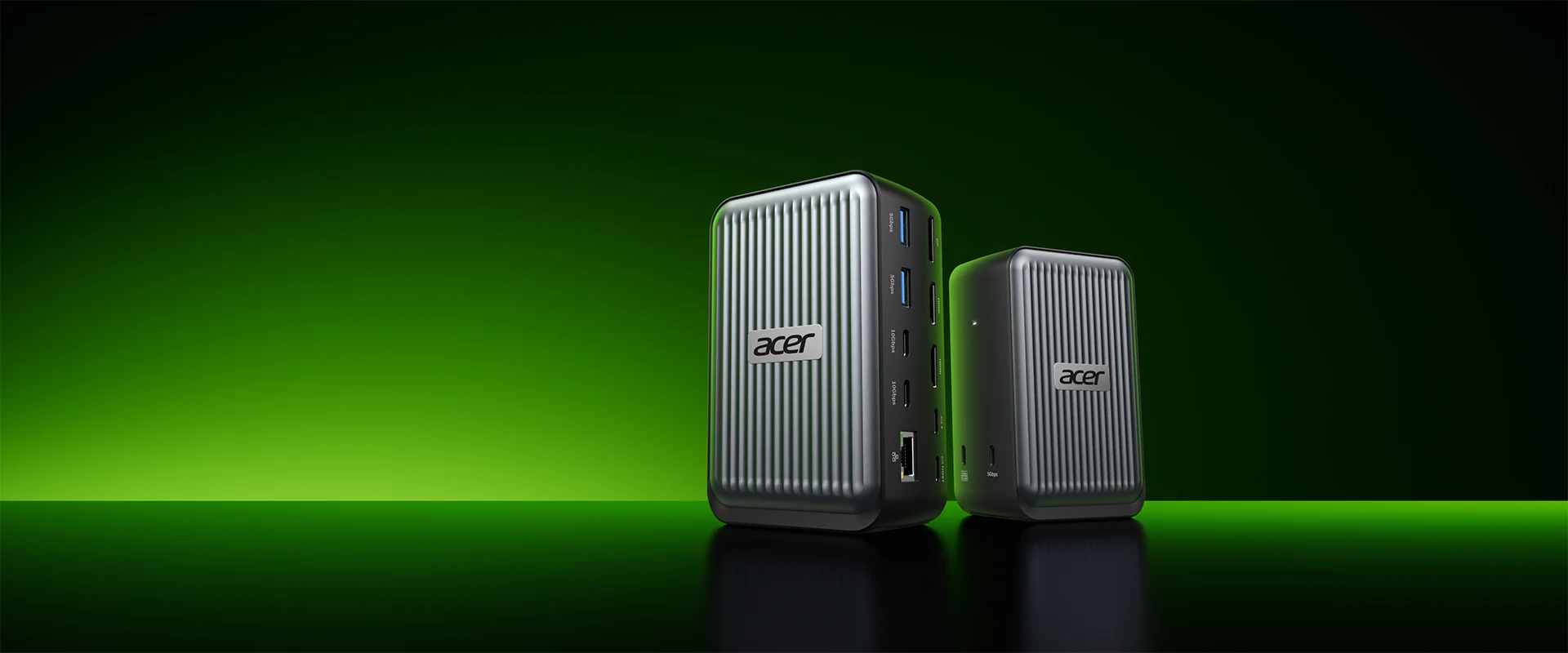
The Acer 12-in-1 USB-C Docking Station combines 2 HDMI ports (4K@60Hz) with 1 DisplayPort (8K@30Hz) to drive three simultaneous screens at 4K@60Hz plus 4K@60Hz plus 1080p@60Hz, while also carrying 4 USB-C ports, 2 USB-A ports, Gigabit Ethernet, and 100W PD charging through the same cable. This particular model is listed on the brand’s site with 9 customer reviews, and it is presented as the newest addition to the lineup. Acer Gadget Partner-Newease positions it as a single-cable way to connect displays, peripherals, and power at once.
This dock also pushes resolution further than most of the range, reaching up to 8K@30Hz on its DisplayPort output alone. That resolution ceiling is one of the clearest differences between this model and the rest of the catalogue.
The Acer 11-in-1 Docking Station: Balancing Port Count and Display Resolution
The Acer 11-in-1 USB-C Docking Station for 3 Monitors carries 2 HDMI ports (4K@60Hz), 1 DisplayPort (single 8K@30Hz), 2 USB-C ports rated at 10Gbps, 2 USB-A ports at 5Gbps, Gigabit Ethernet, 100W PD charging, and SD/MicroSD card slots rated at 104Mbps, all aimed at a three-monitor layout. On the brand’s site, this exact listing carries 144 reviews, and it ships with a multifunctional detachable USB-C cable built into the design.
This model doubles as a laptop stand, raising the device to a more ergonomic height while docking it. That dual function suits a desk where space is limited but a USB-C docking station multi-monitor setup is still the goal. Acer Gadget Partner-Newease also lists a related 11-in-1 variant with a slightly different port arrangement, so checking the exact listing before ordering is worthwhile.
The Acer 9-in-1 Docking Station for Dual-Monitor Workflows

Not every desk needs three screens. The Acer 9-in-1 USB-C Docking Station for Dual Monitors swaps the DisplayPort output for a simpler pair of HDMI ports at 4K@60Hz, pairing them with 3 USB-A ports (5Gbps), 1 USB-C port (5Gbps), 100W PD charging, and SD/MicroSD card slots. That arrangement lets a laptop extend or mirror across two external displays while keeping the cabling lighter than the three-monitor docks above.
For Mac compatibility, Acer Gadget Partner-Newease notes support is limited to A-AA or A-BB configurations on this model. That narrower compatibility note is specific to this unit within the lineup and does not apply to the 11-in-1 or 12-in-1 docks.
Connectivity Beyond Displays: Ethernet, USB, and Power Delivery in Acer Docks
Multi-monitor output is only part of what a dock contributes to a desk. Gigabit Ethernet appears across several models, giving a wired connection option instead of relying on Wi-Fi for stability. Power Delivery, commonly rated at 100W across this range, lets the dock charge a connected laptop through the same cable that carries video and data.
USB-A and USB-C ports round out the connectivity, handling keyboards, mice, external drives, and other accessories. SD and MicroSD card slots, rated around 104Mbps on several models, add a direct route for transferring photos or footage without a separate reader. Together these ports turn a single USB-C cable into the backbone of an entire desk setup, which is the practical core of any USB-C docking station multi-monitor build.
- The Acer 12-in-1 dock pairs 2 HDMI (4K@60Hz) ports with 1 DisplayPort rated up to 8K@30Hz for triple-monitor output.
- The Acer 11-in-1 dock for 3 monitors combines 2 HDMI (4K@60Hz) and 1 DisplayPort (8K@30Hz) with 10Gbps USB-C data ports.
- The Acer 9-in-1 dock supports dual 4K@60Hz displays through 2 HDMI ports alongside 5Gbps USB-A and USB-C connections.
- Power Delivery reaches 100W on the 12-in-1, 11-in-1, and 9-in-1 docking stations, charging a laptop during use.
- SD and MicroSD card slots rated at 104Mbps appear on the 11-in-1 and 9-in-1 models for direct media transfer.
Scaling a Workstation: Comparing Acer’s Docking Options
Choosing among these docks largely comes down to how many displays a workstation actually needs and how much resolution each one should carry. A desk built for triple 4K or 8K output points toward the 12-in-1 or 11-in-1 docking stations, since both pair HDMI with DisplayPort for that extra screen. A simpler dual-monitor arrangement is covered by the 9-in-1 model without the added DisplayPort hardware.
Port count beyond video also plays a role in that decision. Faster USB-C data transfer and a built-in laptop stand sit with the 11-in-1 option, while a desk already equipped with its own stand may prioritize the 12-in-1’s higher resolution ceiling instead. Acer Gadget Partner-Newease lists the detailed port breakdown for each dock on its own product page, which remains the clearest way to match a configuration to a specific laptop and monitor combination.
Multi-monitor computing keeps expanding as more work shifts to visual, data-heavy tasks spread across screens. A single, well-matched dock remains the simplest way to get there.